
Barcode Login ETS-Auto Terminal

Barcode Login ETS-Auto Terminal

Purpose: To describe the steps for logging into an operation or card using barcodes via ETS-Auto terminal interface.
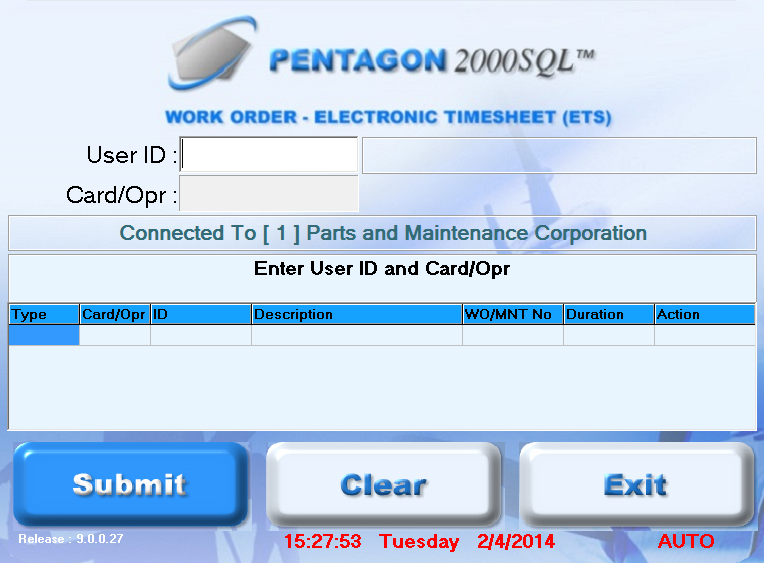
  1. Left-click the ETS-Auto shortcut to open the application on the terminal.
  2. The Electronic Timesheet (AUTO) terminal interface will appear.

  3. Scan the barcode on the employee badge.
  4. Scan the barcode on the card or operation.
  5. The task will appear in the grid and the task will be identified as Opened in the Action column.
  6. Press the Enter key or left-click the Submit button.
  7. If the user is already logged into another task, the employee will be logged out of the one task and logged into the new task.

AEROSPACE          DEFENSE          ELECTRONICS          POWER SYSTEMS          METALS     DEFENSE          ELECTRONICS          POWER SYSTEMS          METALS


Barcode Login ETS-Auto Terminal