Purpose:
To
describe the steps for logging into an operation or card using barcodes
via ETS terminal interface.
- Left-click the ETS
shortcut to open the application on the terminal.
- The Electronic
Timesheet terminal interface will appear.
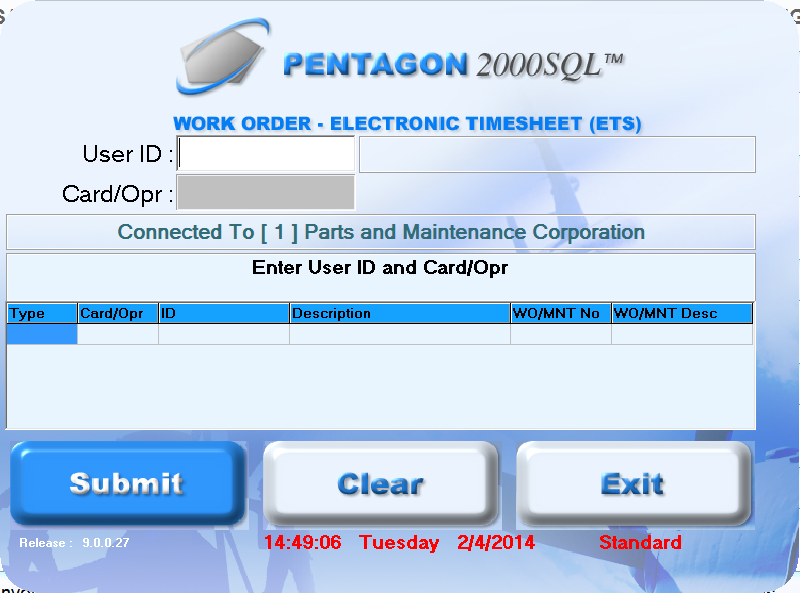
- Scan the barcode on the employee badge.
- Scan the barcode on the card or operation.
- The task will appear in the grid.
- Continue to scan barcodes on additional cards
or operations until all tasks have been added to the grid.
NOTE: You must ensure the
Auto Clear
After field (see ETS
Terminal Setup) is long enough to enter all task numbers before
the terminal interface clears.
- Press
the Enter
key, left-click the Submit
button or wait for the system to automatically submit the information.