Purpose:
To
define the elements displayed on the Rout.
(Routing) tab of the [Component] Work Order
window.
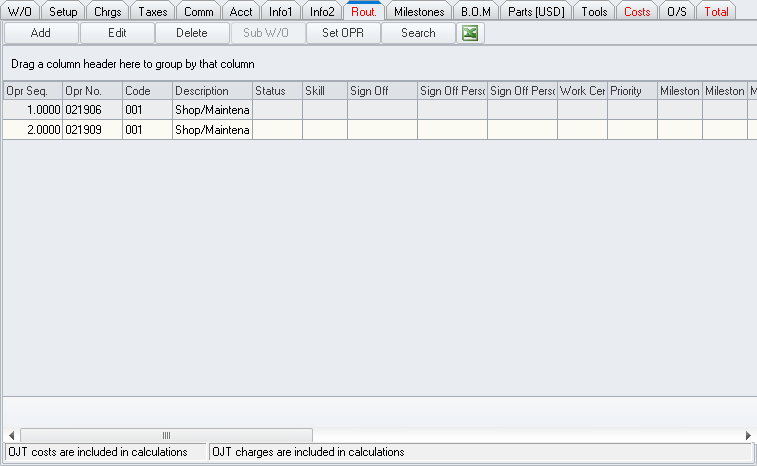
NOTE: "Routing"
refers to the collection of operations required to complete the work order.
Tab Tool Bar
Located across the upper portion of the tab.
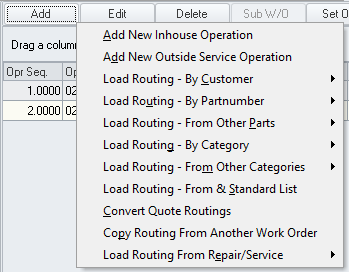
- Add button
- Left-click to display a menu that allows the user to add operations
using various methods.
- Edit button
- Left-click to open the operation that is selected in the grid.
- Delete button
- Left-click to delete the operation that is selected in the grid.
NOTE: The
delete function is only enabled when the work order is in edit mode(adj) in any document, left-click the Edit button (most commonly located in the document window toolbar); after the button is selected "[Editing]" should appear in the document window title bar.
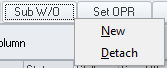
- Sub W/O
button - Left-click to display a menu that allows the user to attach
or detach a sub work order to the operation that is selected in the
grid.
- Set OPR button - Left-click to manually identify the operation
that reflects the progress of the work order in the Operation
Seq field on the work order Header.
- Search button
- Left-click to open the Operation
search window.(link pending)
NOTE: The
search window will only list operations that are associated with the
particular work order.
 button -
Left-click to export the grid to a .csv file.
button -
Left-click to export the grid to a .csv file.
NOTE: The
columns will be exported to the .csv in the same order in which they
appear in the grid.
Grid
Located in the lower portion of the tab, just below the tab tool bar.
- Displays a row for each operation associated
with the work order.
- Column Grouping
- Column headers may be dragged into the area just above the grid
column headers in order to group results by that column (or set of
columns).
- Column Headers
- Identifies the field to which the values below that header belong.
Left-clicking a column header will result in the grid being sorted
by that column in ascending order. Left-clicking a second time on
the same column header will sort the grid by that column in descending
order.
- Filters
- A filter icon
 will appear on the right side of each column header when the mouse
pointer is hovered over the column header. Left-click to expand a
filter menu which will allow the user to filter results based upon
the particular column.
will appear on the right side of each column header when the mouse
pointer is hovered over the column header. Left-click to expand a
filter menu which will allow the user to filter results based upon
the particular column.
NOTE: If
a column is filtered, a grey filter icon  will
appear in the right portion of the column header.
will
appear in the right portion of the column header.
- The width of each column may be adjusted
as necessary.
- The column order may be adjusted by dragging
the column header to another position within the grid. If a column
header is selected (by depressing the left button of the mouse) then
the mouse hovered over the other column headers, a set of green arrows
will appear identifying where the column will be repositioned when
the mouse button is released.
Status Bar
Located at the bottom of the tab.
- OJT Costs
section - Identifies whether the costs associated with labor marked
as OJT(acronym) On the Job Training are included
in grid calculations.
- OJT Charges
section - Identifies whether the charges associated with labor marked
as OJT are included in grid calculations.