Purpose:
To
define the elements displayed in the header section of the [Component]
Work Order window.
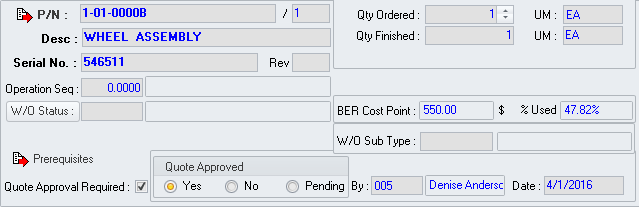
Subject Part Information
The upper left portion of the header displays information about the
part with which the work order is associated.
 icon button - Left-click to open the
warehouse locations window associated with the subject part number.
icon button - Left-click to open the
warehouse locations window associated with the subject part number.- P/N (Part
Number) field - Displays the subject part number.
- Desc (Description)
field - Displays the description of the subject part number from the
subject part number part master record.
- Serial No
field - Displays the serial number of the subject part.
- Rev field
- Displays the revision of the subject part.
NOTE: This field is for reference only. There is no logic associated with this
field except to filter on selected reports.
Work Order Status Information
Located on the right side of the header, just below the subject part
information.
- Operation Seq
(Operation Sequence) field - Displays the operation number that corresponds
to the progress of the work order (see the Rout
tab for more info).
- W/O Status
(Work Order Status) button - Left-click to display a list of work
order status changes that were made since the work order was created.
- W/O Status
(Work Order Status) field - Displays the current work order status.
Work Order Quantity Information
Located in the upper right portion of the header.
- Qty Ordered
field - Displays the quantity of the subject part number that is part
of the work order.
- UM (Quantity
Ordered Unit of Measure) field - Displays the unit of measure in which
the Qty Ordered field is expressed.
- Qty Finished
field - Displays the quantity of the subject part number that has
been completed.
- UM (Quantity
Finished Unit of Measure) field - Displays the unit of measure in
which the Qty Finished field is expressed.
-
- Aircraft
Model field [located just to the right of the Aircraft
field] - Displays the model of the aircraft from the aircraft file.
- Airframe
Serial Number field [located just to the right of the
Aircraft Model field] - Displays
the serial number of the aircraft from the aircraft file.
- Aircraft
Description field [located just to the right of the Aircraft
Model field] - Displays the description of the aircraft from
the aircraft file.
Work Order Information
- BER Cost Point
field - Displays the amount (in the selected currency) identified
in the BER Cost Point field on the
Costs
tab of the part master record for the subject part number at which
it is no longer economical to repair /service/overhaul the subject
part.
NOTE: The
applicable currency symbol will be displayed just to the right of
the field.
- % Used field
- Displays the percentage of the BER Cost
Point that has been expended on the work order.
- W/O Sub Type
field - Displays the work order sub type for the work order.
NOTE: This field is for reference only. There is no logic associated with this
field except to filter on selected reports.
- Prerequisites
button - Left-click to view a list of work orders that are prerequisite
to the current work order.
Approval Information
Located in the lower portion of the header.
- Quote Approval Required
flag - When the flag to the right of the label is checked
 ,
a quote approval is required and the Quote
Approved group box will be visible.
,
a quote approval is required and the Quote
Approved group box will be visible.
NOTE: If
the flag NOT checked  ,
parts may not be sent to parts/material requisition or pulled from
stock and labor may not be logged.
,
parts may not be sent to parts/material requisition or pulled from
stock and labor may not be logged.
- Quote Approved
group box
- Yes radio
button - If selected, this indicates that the quote for the work
order has been approved and the By
and Date fields will be visible
(see below).
- No radio
button - If selected, this indicates that the quote for the work
order has not been approved.
- Pending
radio button - If selected, this indicates that there is an expectation
for approval, but approval has not yet been officially received.
- By field
- Displays the user who was responsible for accepting the approval
NOTE: Appears
when the Yes radio button is selected
in the Quote Approved group box.
- Date field
- Displays the user who was responsible for accepting the approval
NOTE: Appears
when the Yes radio button is selected
in the Quote Approved group box.